Add your providers
This page shows you how to add each dentist and hygienist and enter how they are paid, so Chairside Payroll can work out their pay.
Steps
- Click Provider management in the top menu.

- Click Add provider.
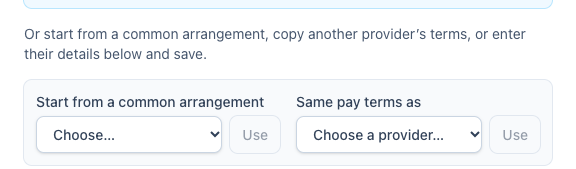
- To save time, pick one under Start from a common arrangement and click Use. Or pick a provider under Same pay terms as and click Use.
- Type the provider's Name.
- Type their ID in your practice software, exactly as it shows in the provider column of your exports.

- Choose the Provider type: Dentist or Hygienist.
- Under How they're paid, choose Commission, calculated here. Choose Paid outside Chairside only if someone else works out their pay.
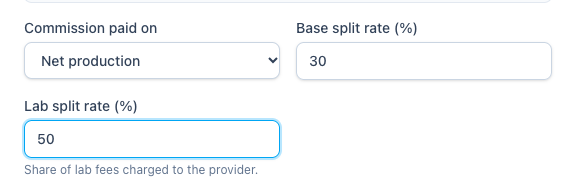
- Under Commission paid on, choose Net production or Collections.
- Enter the Base split rate (%) and the Lab split rate (%).
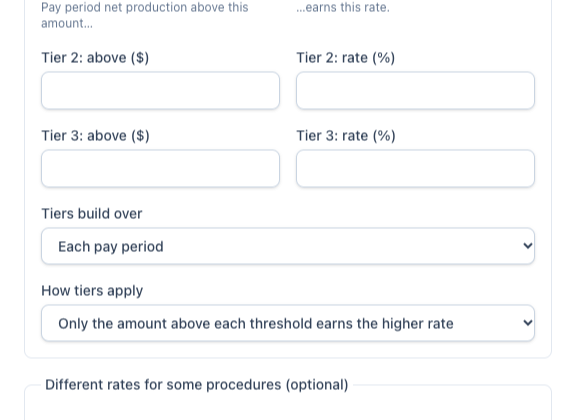
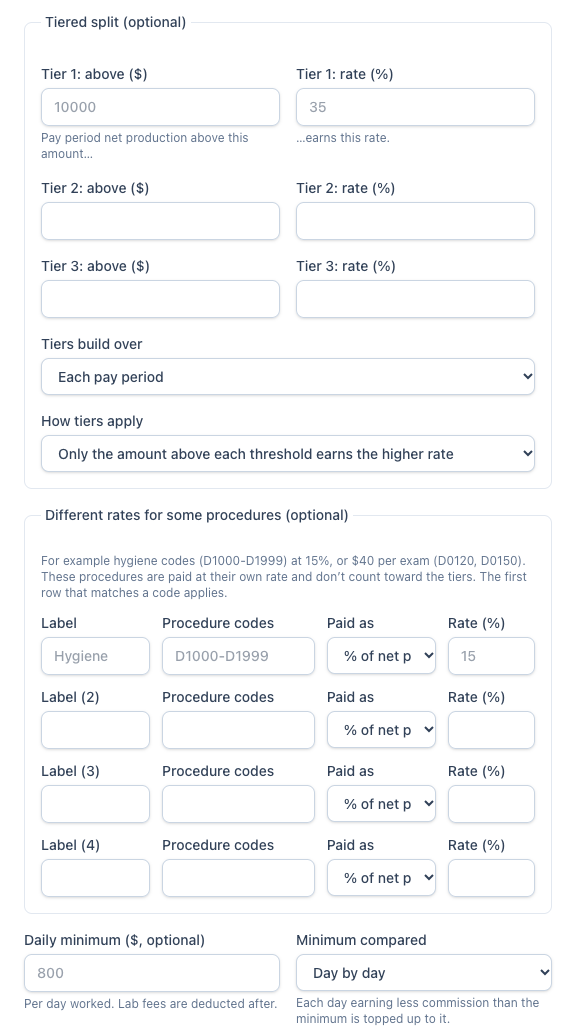
- If their contract has them, fill in the optional parts: Tiered split, Different rates for some procedures, and Daily minimum ($, optional).
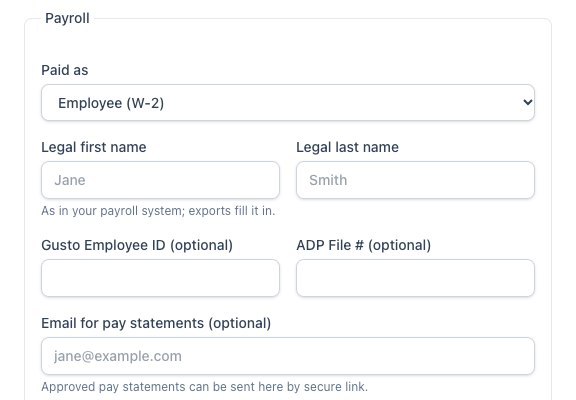
- Under Payroll, choose Paid as: employee or contractor.
- Enter their Legal first name and Legal last name as they appear in your payroll system. Add the Gusto Employee ID or ADP File # if you have it.
- Add their Email for pay statements if you want to send statements by secure link.
- Click Add provider. Repeat for each provider.

To change someone's terms later, click Edit beside their name, make the change, and click Save changes. When someone leaves, click Archive. Their pay history stays, and they stop counting toward your bill from your next billing period.
A provider can also have their own sign-in to see their statements from your practice. Beside their name, click Invite to see their statements. The invite goes to their Email for pay statements, and they see only their own statements. To end it, click Remove access. See "Your statements (for providers)."
If something's wrong
- An upload says it found a provider it doesn't know. The ID you typed doesn't match your export. In the Resolve unmapped providers window, choose Map to an existing provider and pick the right person, then click Save provider mappings. Future uploads will match.
- A line belongs to a house or unassigned account, not a person. In the same window, choose Not a provider: an unassigned account. Those lines are left out of pay.
- You changed someone's pay terms and a saved period still shows the old pay. Saved and approved runs keep the terms they were worked out with. Check the Changed pay terms start date on the form; the payroll page will ask what to do with any saved draft.