Team and roles
This page shows you how to invite your coworkers and choose what each person is allowed to do.
The roles
Each role can do everything the roles above it can do.
- Viewer: see runs and reports on screen.
- Reviewer: upload exports, save runs, adjust lines and enter spreadsheet pay.
- Payroll manager: approve, reopen and export payroll, and download pay statements and provider statements.
- Admin: manage providers, security settings and the team.
- Owner: everything, including making other owners.
Everyone with access sees each provider's pay and pay terms, so choose roles with care.
Steps
- Click Team in the top menu.
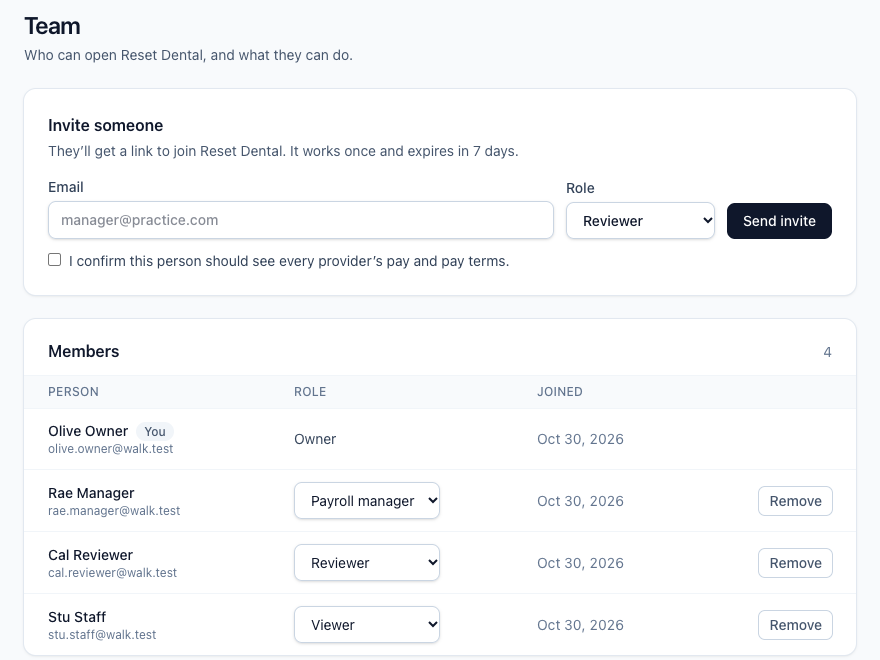
- Under Invite someone, type the person's Email.
- Choose their Role.

- If you're an owner, click Send invite. If you're an admin, click Ask an owner to approve.
- If the role can move money or control access, a window explains what it allows. Click Yes, invite as that role to confirm.
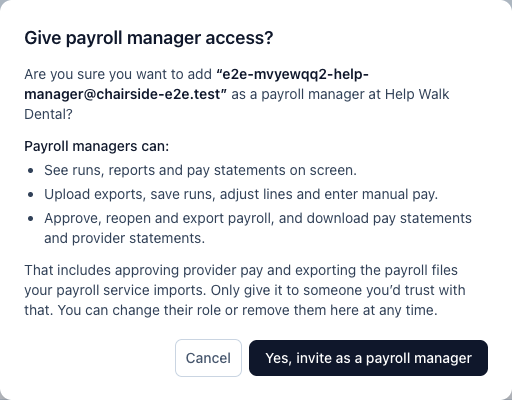
- If the email can't be sent, click Copy link and send the link to the person yourself. The link works once and expires in 7 days.

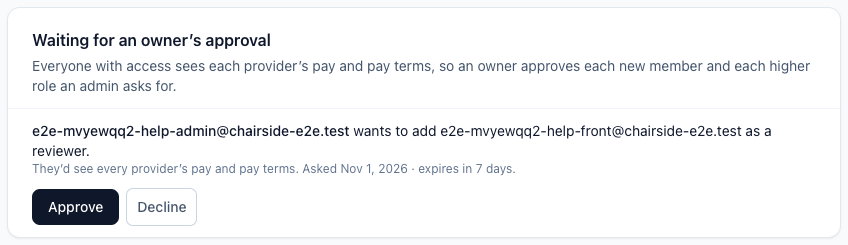
- Owners: when an admin asks to add someone or raise a role, it shows on the Team page. Click Approve or Decline.
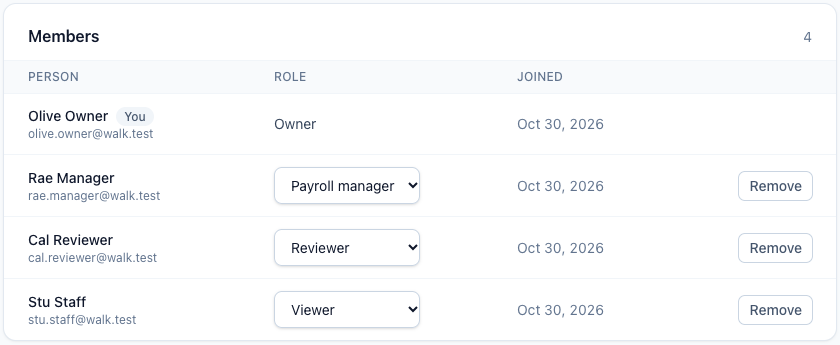
- To change someone's role, pick a new one from the list beside their name.
- To take away someone's access, click Remove, then confirm. To leave a practice yourself, click Leave.
If something's wrong
- The invite link stopped working. Links expire after 7 days and work only once. Click Send new link to email a fresh one; the earlier link then says "A newer link was sent", so the person opens the newest email. The person must sign in with the same email you invited.
- You can't remove or change an owner. A practice always needs at least one owner. Make someone else an owner first.
- A coworker lost their phone and can't sign in. An owner can reset their second step on this page. See "Two-step sign-in and getting back in."