Run and approve payroll
This page shows you how to upload a pay period, check each provider's pay, and approve it.
Reviewers can upload and check. Payroll managers can approve.
Steps
- Click Payroll in the top menu.

- Drag your export anywhere onto the page, or click Choose file and pick it.

- Wait while it reads the file and works out pay.
- If it asks about a provider, answer it. If it says a provider isn't set up, add them on Provider management, then drop the file again.
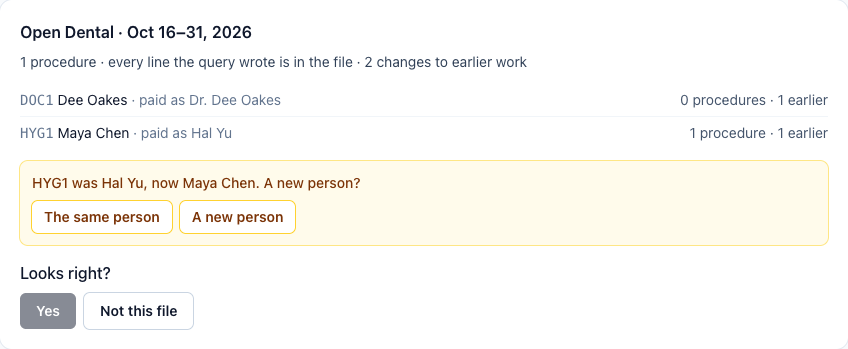
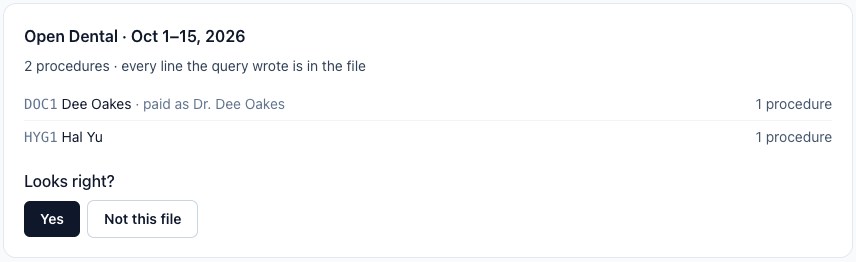
- Read the summary at the top: the dates, lines and providers found, and whether the totals match your report.
- If it's the right file, click Yes. If not, click Not this file. The draft saves itself.
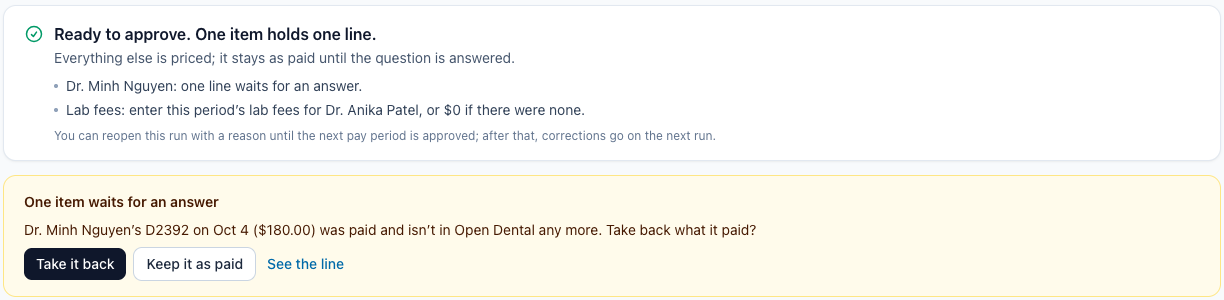
- Read the summary card at the top. It says whether anything needs you. If an item waits for an answer, the amber card under it asks the question: choose an answer, such as Take it back or Keep it as paid. If it asks for lab fees, enter them under Lab fees this period (or $0) and click Save.
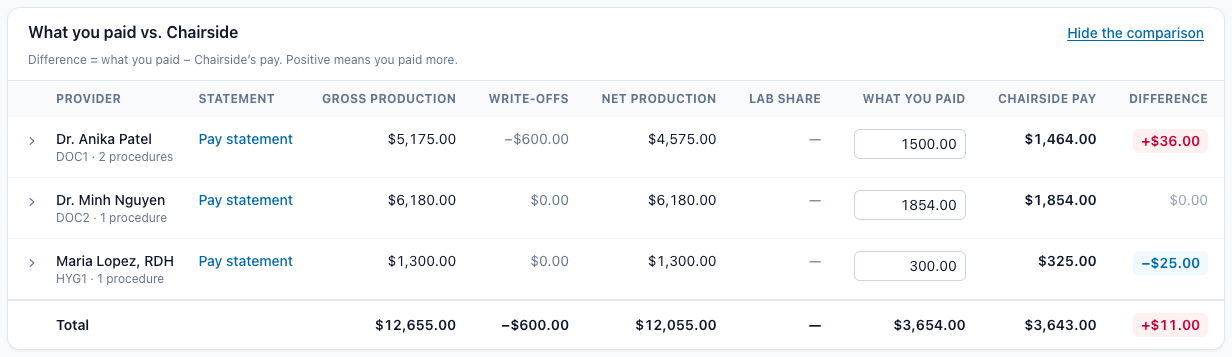
- On a free payroll check of a past period, click Compare with what you paid. Type each provider's pay in the What you paid column and check the Difference column.
- Click a provider's name to open their row (on a phone, Show pay details). It shows how pay was built, their lines and any clawbacks.
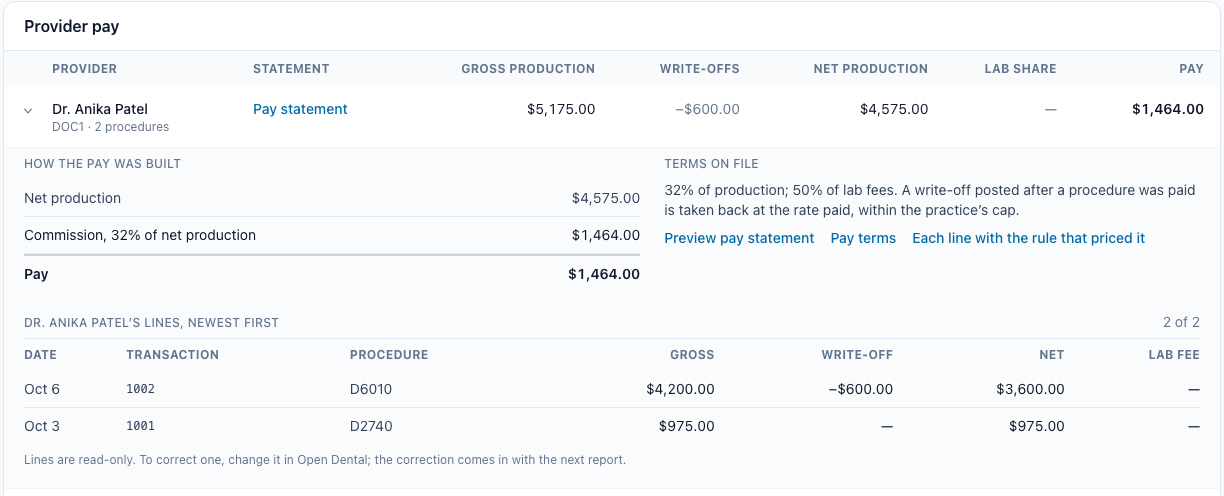
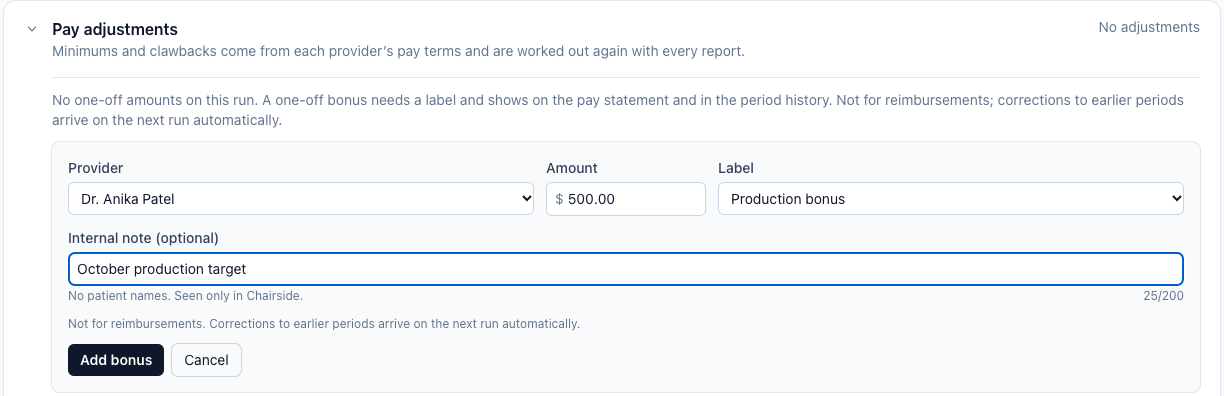
- Lines are read-only. To correct one, change it in your practice software; the correction comes in with the next report. To add a bonus, open Pay adjustments, click Add a one-off bonus, fill in the provider, amount and label, and click Add bonus.
- Click Approve & lock run at the top right. Approving sets pay; statements are sent separately. If a box under the summary asks you to confirm corrections to earlier pay, tick it first.

- The period is now approved and locked. The green badge at the top shows who approved it and when.

To change it, click Reopen this period beside the Approved badge, type a reason, and click Reopen.
How corrections work
Chairside recognises each line of your export so that a corrected export changes only what changed.
- If your export has line numbers (a transaction or procedure number), each line is recognised by its number.
- If it has none, each line is recognised by its date, provider and procedure code. Two identical procedures for the same provider on the same day are counted as two lines.
- Before you approve, drop a corrected export for the same dates: it replaces the draft's lines, and the pre-flight shows what changed before anything is saved.
- After you approve, drop the period's corrected export on the Payroll page. The approved period stays as it is; each difference is paid or taken back on your next pay period, and lines no longer in the file, or new in it, are asked about first.
- Until the next period is approved, you can also reopen the approved period with a reason, drop the corrected export and approve it again.
If something's wrong
- You can't approve, and it says to confirm it's you or set up two-step. Click the button where Approve was, finish the second step, and you come back to the same page. See "Two-step sign-in and getting back in."
- The wrong file was used for a draft. Drop the right one on the page; it shows what it found and asks before it's saved.
- It says "Refresh — something changed since this was calculated." Someone else changed the period while you were working. Refresh the page to see the latest version, then make your change again.