Pay statements and the payroll file
This page shows you how to get each provider's pay statement and the file you upload to your payroll service after a period is approved.
These downloads need the Payroll manager role and two-step verification.
Steps
- Open the approved period on Payroll.

- Click Export to payroll in the bar at the bottom of the page. After your first export, this becomes a one-click button named for the format you used, such as Download for Gusto.

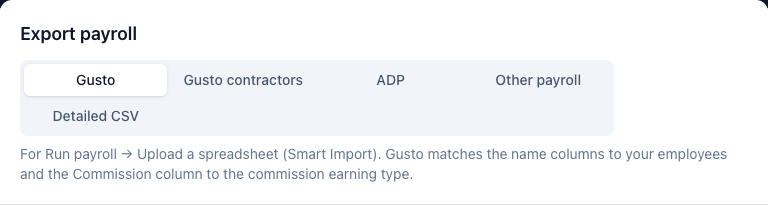
- In the Export payroll window, choose Gusto, Gusto contractors, ADP, Other payroll or Detailed CSV.
- Fill in any missing legal first or last names it points out, and check who is listed under Left out of the file.
- Click Download CSV.
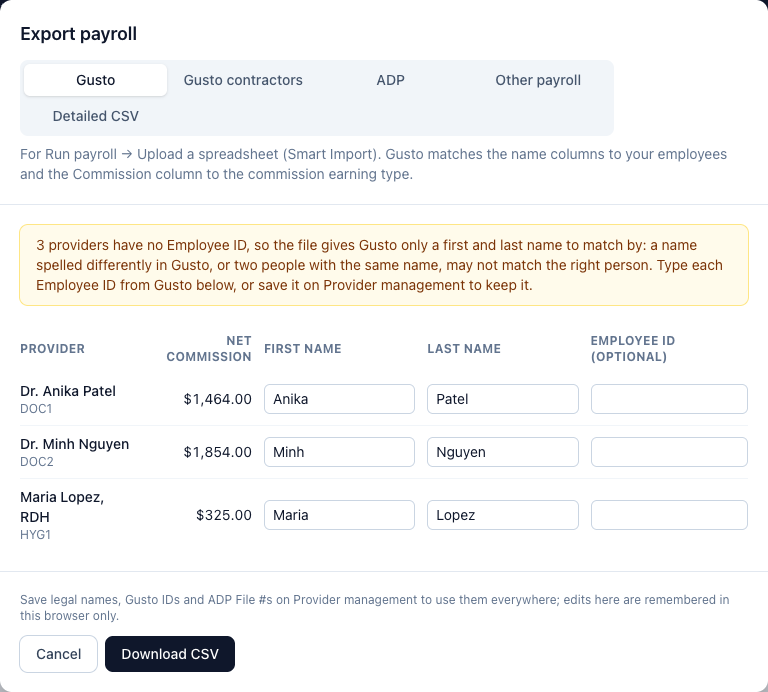
- Upload that file in your payroll service. For Gusto, use Run payroll → Upload a spreadsheet.
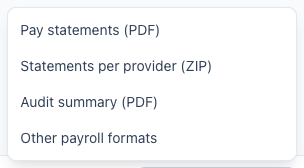
- Click More downloads to see everything else.
- Click Pay statements (PDF) for one PDF of every statement, or Statements per provider (ZIP) for one PDF per provider.
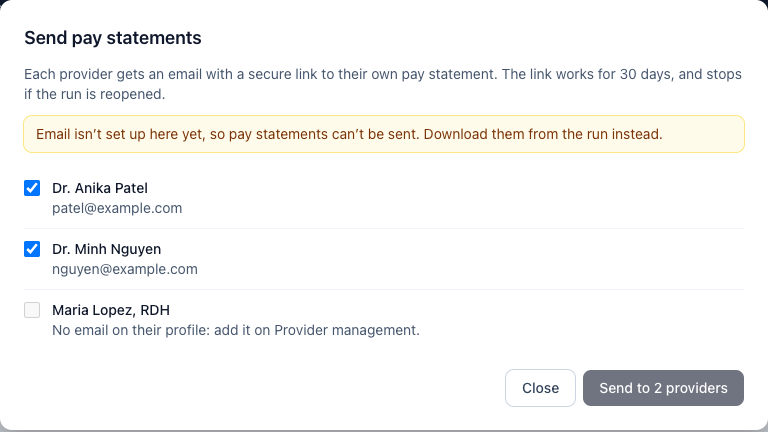
- To email statements, click Send N statements (for example, Send 3 statements), tick the providers, and click Send to N providers. Each one gets a secure link to their own statement. The link works for 30 days.
- For your records, click More downloads, then Audit summary (PDF).
Year-end and other dates
- Click Statements in the top menu.
- For the year, click All statements (PDF) or Accountant's file (CSV). To get one provider's statement, click Statement on their row.
- For any date range, choose a provider and dates, then click Download PDF.
Everything at once (owners and admins)
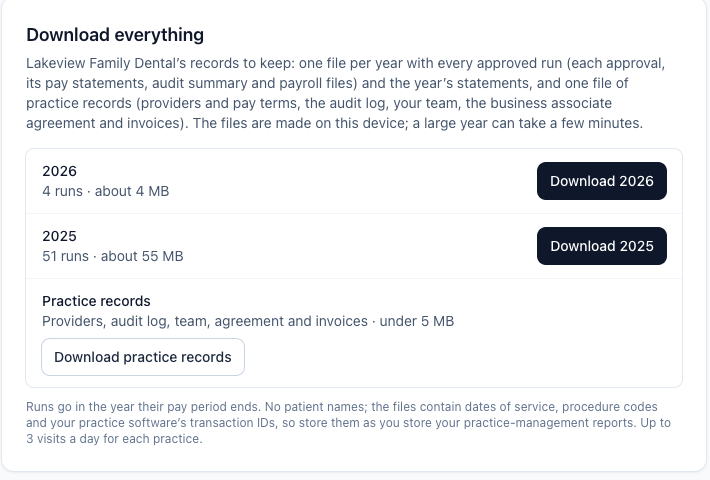
- Go to Account and find Download everything.
- Click the download button for each year (for example, Download 2026), then Download practice records. Keep the page open until each file downloads.
If something's wrong
- You downloaded the file twice. Chairside Payroll warns you before a second export. Upload only one file to your payroll service for each period.
- A provider can't be ticked in Send pay statements. There's no email on their profile. Add it under Email for pay statements on Provider management, then try again. If the window says email isn't set up, download the statements and hand them out instead.
- You need to fix pay after exporting. Click Reopen this period and give a reason, make the fix, approve again, and export again. Links you already sent stop working, so send them again.