Two-step sign-in and getting back in
This page shows you how to set up and use a second sign-in step, and how to get back in if you lose it.
Set it up
- Click Account in the top menu and find Two-step verification.
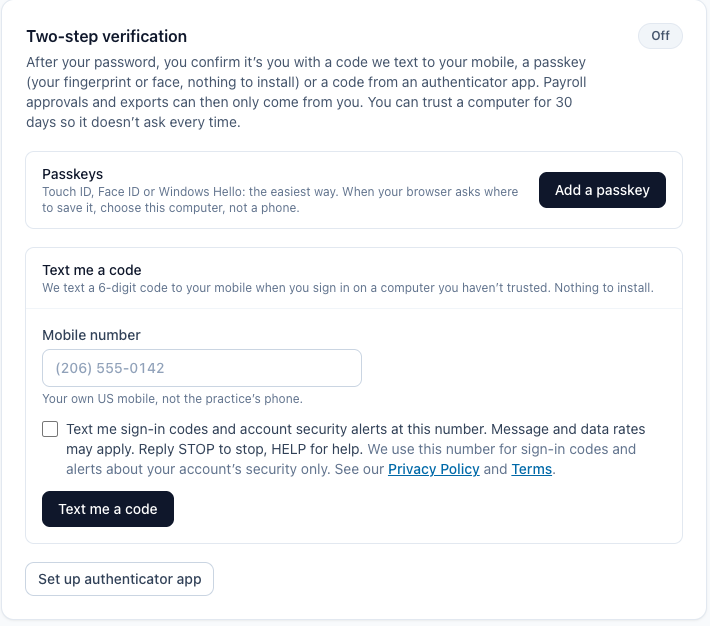
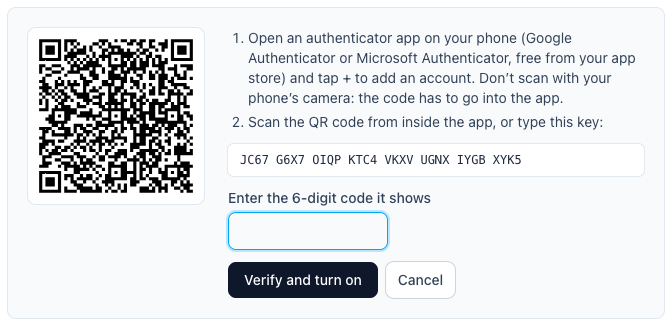
- Click Add a passkey to use Touch ID, Face ID or Windows Hello, and save it to this computer. Or click Set up authenticator app, scan the QR code, type the 6-digit code, and click Verify and turn on.
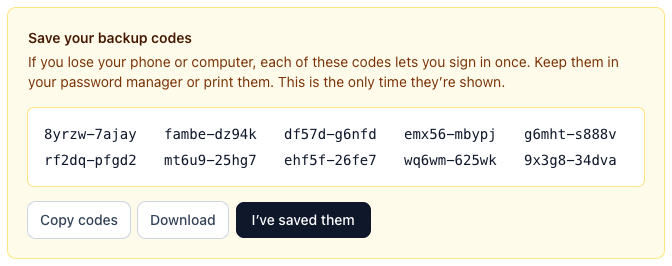
- When Save your backup codes appears, click Copy codes, keep them somewhere safe, and click I've saved them.
- If you're your practice's only owner, add a second way to sign in, ideally on a different device: a passkey (click Add a passkey or Add another passkey) or an authenticator app (click Set up authenticator app or Add another authenticator app). Backup codes don't count. If your practice requires two-step, every sign-in needs two ways in on file 30 days after your first approved payroll or first payment (or 30 days after you join, if that's later); you'll see the date on your payroll page.
Sign in
- Type your email and password and click Sign in.
- Type the 6-digit code from your app and click Verify, or click Use my passkey.
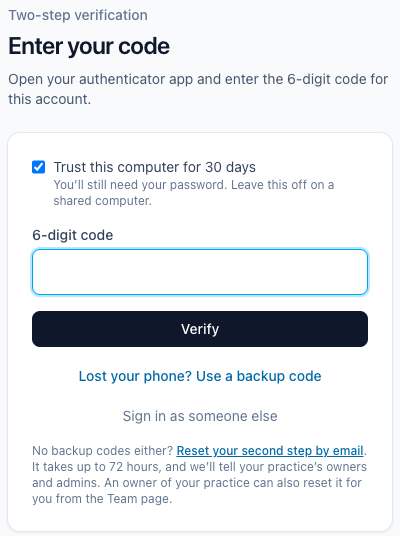
- On your own computer only, tick Trust this computer for 30 days.
Lost your phone?
- On the second-step page, click Lost your phone? Use a backup code.
- Type one backup code and click Use backup code. A backup code signs you in once; it is not a second step, and it doesn't remove any of your sign-in steps. If you lost the device, remove its second step on your Account page and add a new one.
No backup codes either?
If you're not an owner, ask an owner of your practice:
- The owner opens Team, chooses you, and clicks Reset second step…. They give you an 8-digit enrollment code in person or by phone.
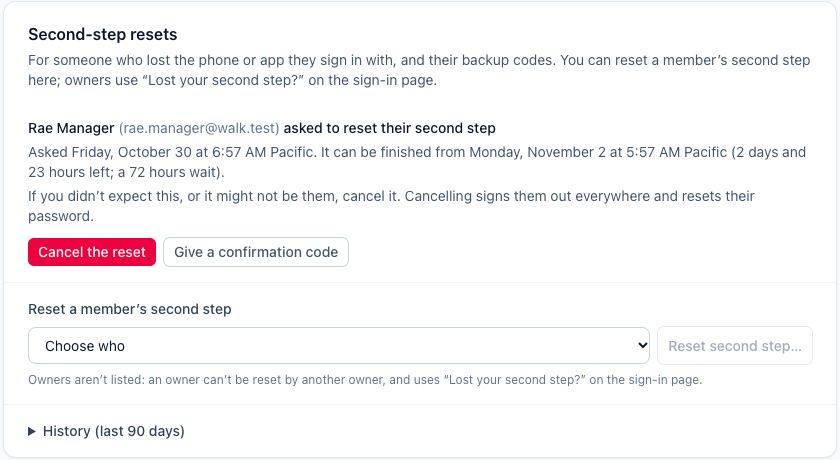
- Sign in with your password and type the code in Enrollment code. Then set up a new second step within 30 minutes.
If you're an owner, or no owner can help:
- On the sign-in page, click Lost your second step?, type your email, and click Email me a link.
- Open the link, type your password, and click Start the reset. Use this same browser from now on.
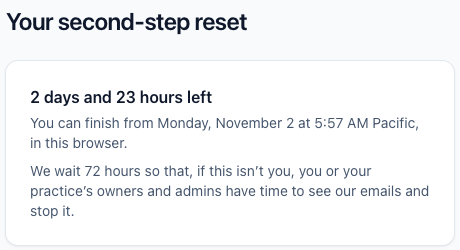
- Wait up to 72 hours, sometimes longer; the page says why. An owner or admin can give you a code to shorten it: type it and click Enter code.
- When the wait is over, open the waiting page again. Open the link we email you, type your password, and click Finish the reset.
- Click Set up my second step and set up a new one within 30 minutes.
If something's wrong
- You forgot your password. Click Forgot password? on the sign-in page.
- You got a reset email you didn't ask for. Click This wasn't me in the email. Then change your email account's password.
- It says the reset can't be finished here. Open the link in the browser where you started the reset.