Export from your practice software
This page shows you how to get the right report out of your practice software so Chairside Payroll can read it.
Chairside Payroll needs one line per completed procedure, with the date, the provider, the procedure code, the fee and the insurance write-off. A summary with one line per provider won't work. Patient columns are removed on your computer before anything is sent.
Open Dental
- On the payroll page, click Which report to export?
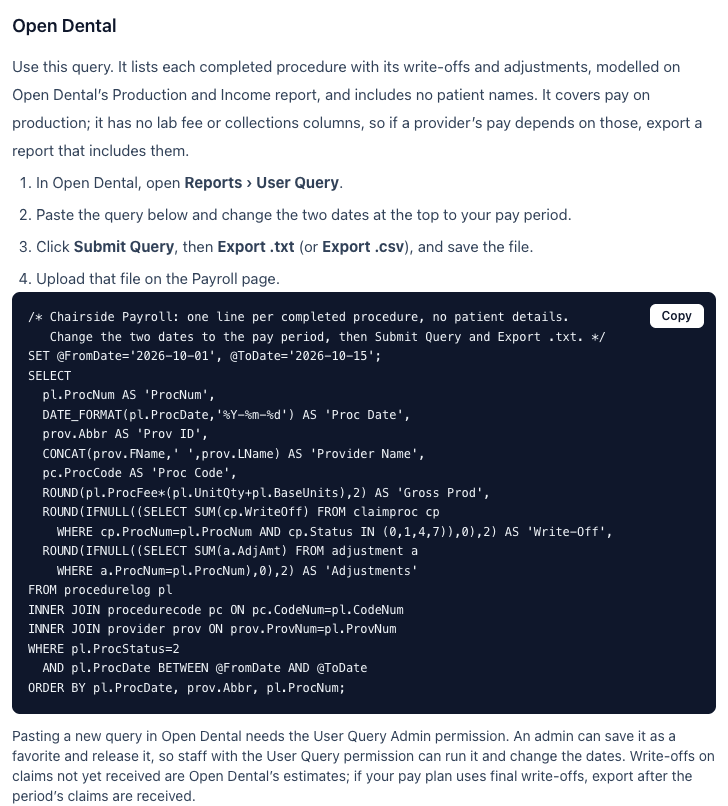
- Click the Copy button on the Open Dental query.

- In Open Dental, open Reports › User Query.
In Open Dental (not pictured): in the menu bar, click Reports, then User Query.
- Paste the query.
- Change the two dates at the top of the query to the first and last day of your pay period.

- Click Submit Query.
- Click Export .txt (or Export .csv) and save the file.
In Open Dental (not pictured): the export buttons are under the query's results, in the same window.
Pasting a new query needs Open Dental's User Query Admin permission. An admin can save it as a favorite for other staff.
Eaglesoft
Chairside Payroll reads and pays from Eaglesoft's Production Reconciliation from November 12, 2026.
- In Eaglesoft, run Production Reconciliation with Other Range of End of Days for the batches closed in the pay period.
- Click Print, then choose Save as PDF and save the file.
- Drop it on the Payroll page, check what was read (the batches, the providers and the number of procedures), and click Yes.
Dentrix
Chairside Payroll reads and pays from the Dentrix Day Sheet from November 12, 2026.
- In Dentrix, print the Day Sheet by Entry Date for the pay period, with Include Provider Totals and Include MTD and YTD Totals ticked.
- Save it as a PDF.
- Drop it on the Payroll page, check what was read, and click Yes.
Other software
- In your software, find a report that lists every completed procedure on its own line, with the date, provider, procedure code, fee and write-off. A report saved as a PDF also works.
- Drop it on the Payroll page.
- Check what was read (the software, the dates, the providers and the number of procedures). If Chairside Payroll asks Which software made this file?, choose it.
- Click Keep this file. The page lists it with what happens next. Nothing is paid or approved from it until your software's report is read, so pay this period as you do today.
If something's wrong
- "It's in Excel's old .xls format." Open it in Excel, save it as .xlsx or CSV, and upload that.
- You're not sure which report to use. Click Support, then Report a problem, and send us the report's column headings only, never patient details. We'll tell you which report to use.