Getting started
This page shows you how to create your Chairside Payroll account and get your practice ready for its first payroll.
Steps
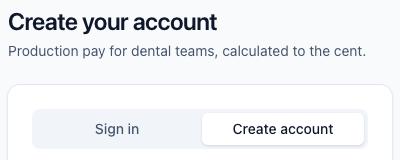
- Go to the sign-in page and click Create account.
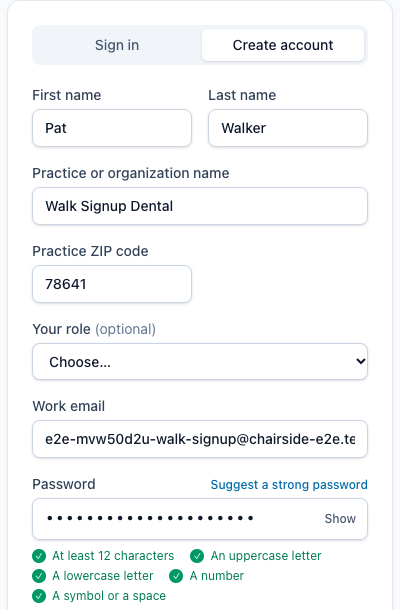
- Fill in your first and last name, Practice or organization name, Practice ZIP code, your job role and Work email. Choose a password.
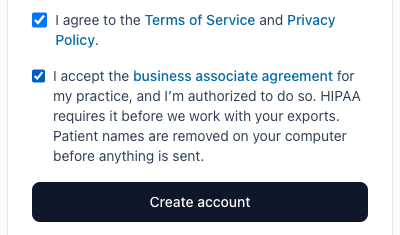
- Tick the box that says you agree to the Terms of Service and Privacy Policy. Tick the box that accepts the business associate agreement. Then click Create account.
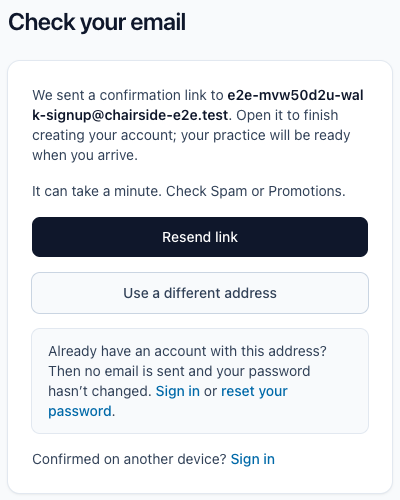
- A Check your email page shows the address the link went to. Open that email and click the link in it. Your practice is ready when you arrive.
- Follow the setup guide that sits at the bottom of the screen. It walks you through each first step, one at a time.

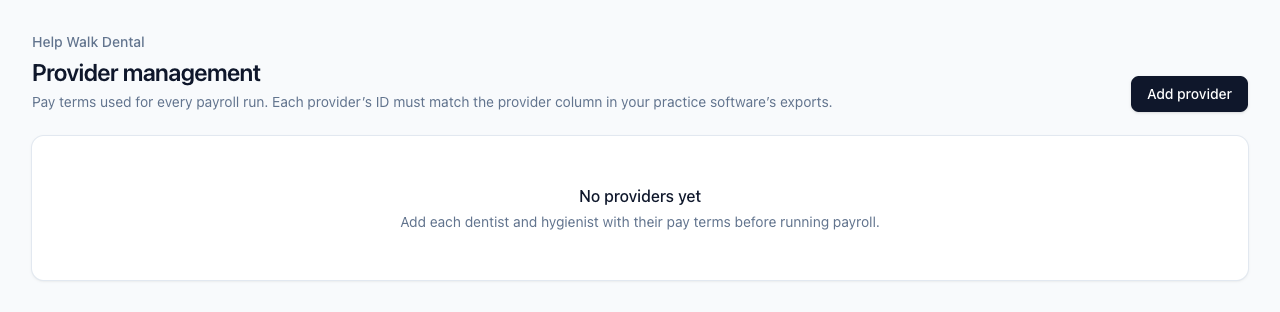
- Add your providers and their pay terms on Provider management (see "Add your providers").
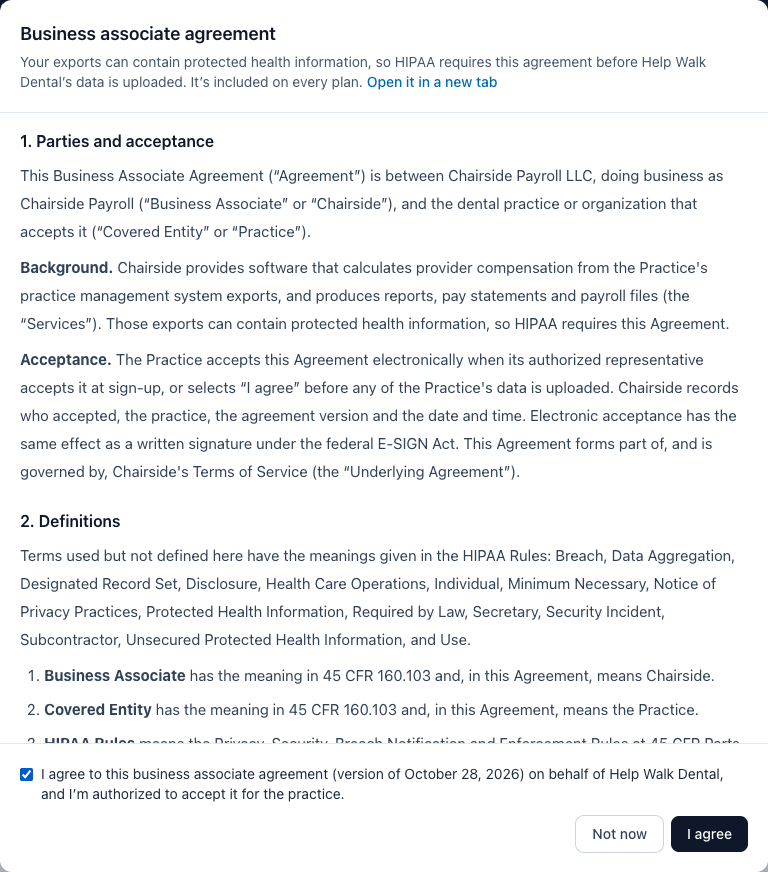
- If the Business associate agreement window opens before your first upload, read it, tick the box, and click I agree. Only an owner or admin can do this. Anyone else can click Ask an owner or admin.
- Set up two-step verification on your Account page (see "Two-step sign-in and getting back in"). You need it before you can approve or export payroll.

- Export your first pay period from your practice software (see "Export from your practice software") and upload it (see "Run and approve payroll").

If something's wrong
- The confirmation email didn't come. It can take a minute. Check Spam or Promotions. On the Check your email page, click Resend link (once a minute). Later, on the sign-in page, click Send a new confirmation link.
- You typed the wrong email address. On the Check your email page, click Use a different address. The form comes back as you filled it in; fix the address and click Create account again.
- The guide is gone. Go to Account and tick Show the setup guide. If you left the guide to do a step, click Back to your setup at the top of the page.
- You can't accept the agreement or change settings. Your role doesn't allow it. Click Ask an owner or admin, and we'll email them a link to do it.